Pitara User Guide
Complete guide to using Pitara for fast, private photo search on Windows. Learn first-time setup, search, browsing, tags, exports, shortcuts, and the everyday workflows that make large photo libraries easy to handle.
1. Getting Started
Installation
- Download Pitara from the download page
- Choose between Setup (installer) or Portable (no installation)
- Run the installer or extract the portable version
- Launch Pitara on Windows
💡 Tip: First-time users should start with the Setup version for automatic Windows integration. Choose Portable if you want to run Pitara from a USB drive or don't have admin rights.
First Launch: Adding Your Photos
On first launch, Pitara needs to know where your photos are stored:
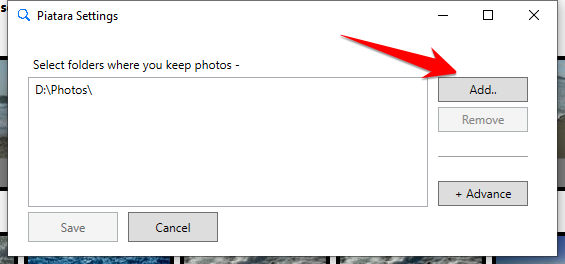
- Click Settings in the menu bar
- In the Settings dialog, click Add Folder
- Browse to your photo folders (e.g., Pictures, Desktop, external drives)
- Add as many folders as you need
- Click OK to save and start indexing
.png)
What happens during indexing? Pitara scans your photos and reads embedded metadata like location, date, camera info, tags, and file details without moving your originals. It also prepares thumbnails and builds a local search index on your computer.
- First-time indexing runs once for your entire library.
- After that, indexing is incremental — only new or changed photos are processed.
💡 Performance Tip: Store the index on your fastest drive (usually your internal SSD). You can index photos from external or network drives, but keep the index location on your local drive for best performance.
2. Search Naturally (Google-like)
There are unlimited possibilities — a bigger list of sample queries is on the Sample Searches page. But a few samples for understanding are below:
| You type… | Pitara finds… |
|---|---|
| from 2021 to 2025 sammamish | Five years of Sammamish photos, every year included. |
| paris morning 2023 | Paris photos from 2023 taken in the morning. |
| winter morning in december | Morning photos from December winters across all years. |
| 15kfeetplus | Every photo taken above 15,000 ft — altitude pulled from EXIF automatically. |
| iPhone 14 summer | Summer photos shot on an iPhone 14 — model-level precision, no manual tagging. |
| FirstWeek september morning | Morning photos from the first week of September, every year. |
| from 2021 to 2025 sammamish weekend morning | Five years of weekend mornings at Sammamish — year range, location, day, and time in one search. |
3. Tagging Photos
Adding Tags
To add tags to one or more photos:
- Select one or multiple photos from your search results
- Click the Add button from the right side widget, or right-click and select Add Tag, or use File menu → Add Tags
- An Add Tag dialog will appear showing existing tags from the selected photos
- Enter new tags in the provided field
- Click OK to save the tags
💡 Bulk Tagging: Select hundreds of photos at once to tag them all simultaneously. This is one of the fastest ways to make future searches even better.
How Tags are Stored
Tags are written directly into photo file headers using industry-standard IPTC/EXIF protocols. This means:
- ✅ Tags travel with your photos if you move them
- ✅ Other photo software can read Pitara tags
- ✅ Tags are preserved even if you reinstall Pitara
- ✅ No proprietary database lock-in
Supported formats for custom tags: JPEG/JPG and HEIC/HEIF are supported.
⚠️ Note: Tags modify photo file headers, not the image itself. Quality and authenticity remain unchanged.
Removing Tags
To remove tags from one or more photos:
- Select one or multiple photos
- Click the Remove Tag button from the side widget, or right-click and select Remove Tag, or use File menu → Remove Tags
- A Remove Tag dialog will appear showing existing tags from the selected photos
- Select tags you want to remove
- Click OK to confirm
Viewing and Browsing Tags
- Open Tag Catalogs to see all tags in your collection
- Click any tag to instantly see all photos with that tag
4. Exporting Photos
Export Methods
After searching, export photos for sharing, printing, or backup:
Method 1: Selected Photos
- Select one or more photos from search results
- Press Ctrl + E OR right-click → Export Selected
- Photos are copied to your export folder
Method 2: Quick Export (No Selection)
- Right-click anywhere → Export Top 50
- Right-click anywhere → Export Top 100
Changing Export Location
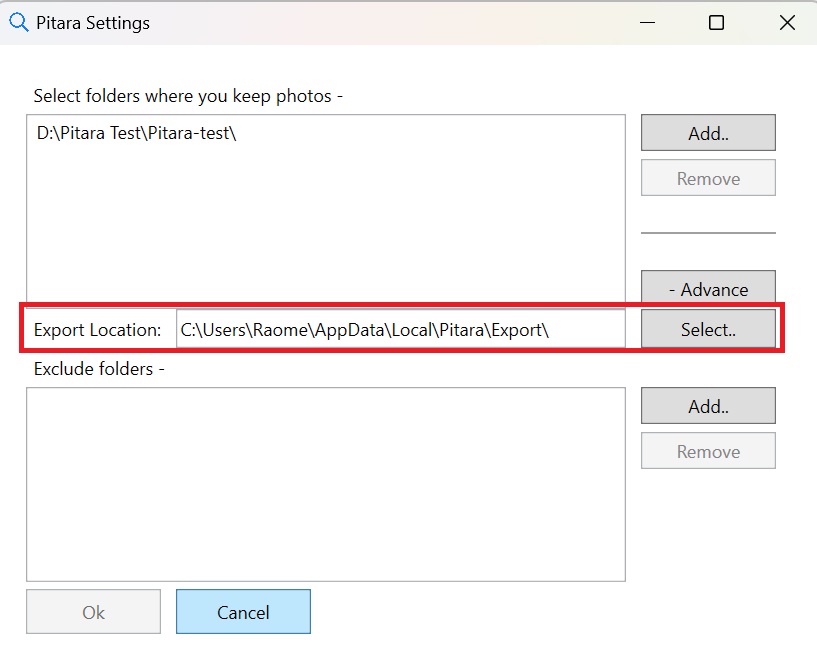
- Go to Settings
- Find Export Folder setting
- Click Change and select new location
The default export location is usually your Pictures folder under PitaraExports.
💡 Workflow Tip: Set your export folder to an external drive or a dedicated backup folder. That way exported photos land exactly where your local backup already runs.
5. Managing Photos
Navigation & Browsing
- Use the Back and Forward buttons to move through recent searches, just like a browser.
- Single-click selects a photo.
- Double-click opens it in your default viewer.
- Use Ctrl + click for multi-select and Shift + click to select a range.
Right-Click Menu
Right-click selected photos for common actions like opening, exporting, copying the file path, tagging, deleting, or locating the original file in Explorer.
Deleting Photos
- Select photos to delete
- Press Del OR right-click → Delete Selected
- Photos move to Windows Recycle Bin (recoverable)
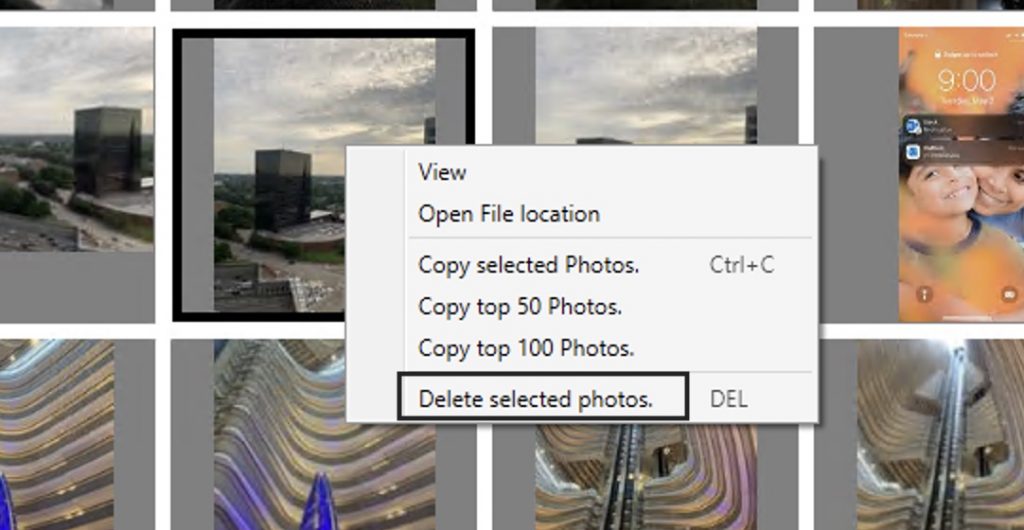
⚠️ Important: Deleting in Pitara permanently moves files to Recycle Bin. Empty your Recycle Bin to free up space.
Opening Photos in External Editor
- Double-click a photo to open in Windows default viewer
- Right-click → Open With for other applications
- Right-click → Show in Folder to locate original file
Excluding Folders from Search
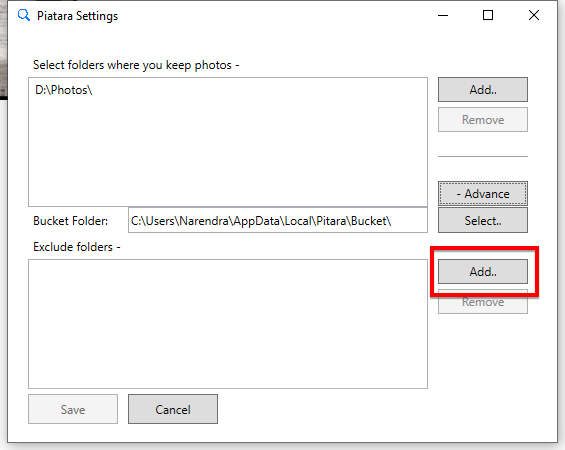
Hide certain folders from search results (e.g., screenshots, thumbnails):
- Go to Settings
- Click Exclude Folders tab
- Click Add and select folders to exclude
- Click OK - excluded folders won't appear in searches
6. External & Network Drives
Indexing External Drives
Pitara works with USB drives, external HDDs, and any connected storage:
- Connect your external drive
- Go to Settings → Add Folder
- Browse to the external drive and select photo folders
- Pitara will index those photos
💡 Best Practice: Keep the index on your internal drive, even when indexing external photos. Go to Settings → Index Location to verify.
Network Drive Setup
Index photos stored on NAS, network shares, or mapped drives:
- Map your network drive in Windows first
- If network drives don't appear in Pitara's folder picker, enable linked connections:
- Run
regedit - Navigate to
HKEY_LOCAL_MACHINE\SOFTWARE\Microsoft\Windows\CurrentVersion\Policies\System - Create DWORD
EnableLinkedConnections=1 - Restart computer
- Run
- Add network folders via Settings
⚠️ Performance Note: Network indexing is slower than local drives. Expect longer initial scan times, but search remains fast after indexing completes.
7. Detailed Tab Descriptions
1. 🔍 Search Tab (Default)
- Primary function: Natural language photo search
- Features:
- Search box with auto-complete
- Chrome-style back/forward navigation
- Add to Favorites button
- Thumbnail grid view
- Tag management panel (right sidebar)
- "On this Day" / "On this Hour" quick links
2. 🏖️ Places Tab
- Primary function: Browse by location
- Features:
- List of all locations (extracted from GPS data)
- Click a location to see all photos from that place
- Uses reverse geocoding (coordinates → place names)
- Groups nearby locations (100m radius clustering)
3. ⏰ Times Tab
- Primary function: Browse chronological albums
- Features:
- Browse by Year (2023, 2022, 2021...)
- Browse by Month (January, February...)
- Chronological albums are divided by year and month
4. 🏷️ My TAGs Tab
- Primary function: Browse by custom tags
- Features:
- Lists all custom tags you've added
- Shows photo count per tag
- Click a tag to see all photos with that tag
- Organized alphabetically
5. 📁 Folders Tab
- Primary function: Browse by folder structure
- Features:
- Shows all indexed photo folders
- Mirrors your computer's folder organization
- Click a folder to see photos in that folder
- Shows photo count per folder
6. 📷 Cameras Tab
- Primary function: Browse by camera/device
- Features:
- Lists all cameras/devices used
- Groups by manufacturer (Apple, Canon, Nikon, Samsung, etc.)
- Shows iPhone models (iPhone 14 Pro, iPhone 13, etc.)
- Click a camera to see all photos from that device
7. ⛰️ Heights Tab
- Primary function: Browse by elevation
- Features:
- Lists photos with GPS altitude data from EXIF
- Organized by elevation ranges (e.g. above 8,000 feet, above 12,000 feet)
- Useful for hiking, mountain, flight, and travel photos
- Supports both feet and meters
8. 📅 This Day Tab
- Primary function: Rediscover memories from the same time across all past years
- Features:
- This Day — photos taken on today's date in any past year (e.g. all your March 21st photos going back decades)
- This Week — photos from the same calendar week across all years
- This Month — photos from the current month across all years
- This Season — photos from the current season (spring, summer, fall, winter) across all years
- Albums update automatically as time passes — no manual refresh needed
💡 Discovery Tip: Use different tabs to explore your photo library from various angles. They reveal patterns in your photo collection you might not have noticed through search alone.
8. Face Recognition — Faces & People Tabs NEW in v7
Pitara automatically detects faces from your entire photo library and surfaces them in the Faces tab. Name a person there and they move to the People tab, where you can search by their name just like any other keyword. Face analysis runs entirely on your computer: GPU not needed, no cloud upload, completely private.
Getting Started with Face Recognition
- Face detection runs quietly in the background while you use the app — you don't need to do anything to start it
- As faces are detected, they appear as tiles in the Faces tab
- Click any tile in the Faces tab to see all photos containing that face
💡 Tip: Face detection is incremental. It resumes automatically if you restart Pitara, so large libraries are processed over multiple sessions without losing progress.
Naming a Person
- Go to the Faces tab
- Click on an unnamed face tile
- Enter a name (e.g. John or Mary) and confirm
- The named person moves to the People tab
- Their name is now searchable — type
John 2023orMary summerin the Search tab to find their photos
Searching by Person
Once you've named someone, use their name in any search query just like a keyword:
| You type… | Pitara finds… |
|---|---|
| John 2023 | All photos of John from 2023. |
| Mary summer Paris | Summer photos of Mary taken in Paris. |
| Sarah birthday | Photos tagged "birthday" that also include Sarah. |
Privacy & Performance
- ✅ All face processing happens locally on your machine
- ✅ No photos or face data are ever uploaded to any server
- ✅ GPU not needed — works on any modern Windows PC
- ✅ Runs as a low-priority background task so it doesn't slow down your searches
⚠️ Note: Face recognition accuracy depends on photo quality and lighting. Photos where faces are small, partially obscured, or taken at steep angles may not be detected or grouped correctly.
9. Keyboard Shortcuts
File Operations
Ctrl + E |
Export selected photos to export folder |
Alt + F4 |
Exit Pitara |
Editing & Selection
Del |
Delete selected photos (moves to Recycle Bin) |
Ctrl + A |
Select all photos |
Ctrl + D |
Deselect all photos |
Ctrl + T |
Add custom tags to selected photos |
Search
Enter |
Execute search query (when in search box) |
Help
F1 |
Open user guide |
Context Menu Actions
Ctrl + Shift + O |
Open file location in Explorer |
Ctrl + Shift + C |
Copy file path to clipboard |
Alt + Enter |
View photo properties |
Photo Viewing
Double-Click |
Open photo in default viewer |
10. Troubleshooting
Photos Not Appearing in Search
- ✓ Check if the folder is added in Settings
- ✓ Check if the folder is excluded (Settings → Exclude Folders)
- ✓ Wait for indexing to complete (status shown in bottom bar)
- ✓ Some photos lack GPS metadata - search by date/time instead
Slow Performance
- Move index to internal SSD (Settings → Index Location)
- Reduce indexed folders (only include essential photo locations)
- Exclude unnecessary folders (Settings → Exclude Folders)
Resetting the Index
If the index becomes corrupted (rare), there are two ways to reset it:
Method 1: Delete the Index folder manually
- Close Pitara completely
- Press Win + R
- Type
%localappdata%\Pitaraand press Enter - Delete the Index folder
- Restart Pitara - it will rebuild the index
Method 2: Uninstall and reinstall Pitara
Uninstalling and reinstalling Pitara also resets the index. This is a clean-slate approach if you prefer not to navigate AppData folders.
⚠️ Note: Resetting the index only removes Pitara's internal database. Your photos and tags remain untouched.
Viewing Logs
For troubleshooting or support requests:
- Click Help menu
- Select Logs
- Log file opens in your text editor
Enabling Debug Logs
For detailed diagnostics (if requested by support):
- Open the Option menu
- Launch Pitara Options
- Enable the Debug Log checkbox
- Save the settings
11. Tips & Best Practices
Organizing Strategy
- 📁 Don't reorganize folders - Pitara works with your existing structure
- 📍 Trust GPS metadata - Modern phones embed accurate location data
- 🔍 Use natural language - Pitara understands "last Christmas" better than complex syntax
Search Pro Tips
- Start broad, then narrow:
Hawaii→Hawaii sunset→Hawaii sunset 2019 - Combine tags with metadata:
birthday weekend from 10 years - Use simple outdoor terms for mountain trips:
Colorado hikeortrail weekend - Find date night photos:
Saturday 7PM restaurant(if you tagged restaurants)
12. Additional Resources
- Sample Searches - More query examples
- Searchable Keywords - Full list of supported search keywords
- FAQ - Common questions answered
- Contact Support - Get help from the team
- How It Works - Understanding Pitara's technology
💬 Need More Help? Can't find what you're looking for? Check the FAQ or contact us - we're here to help!